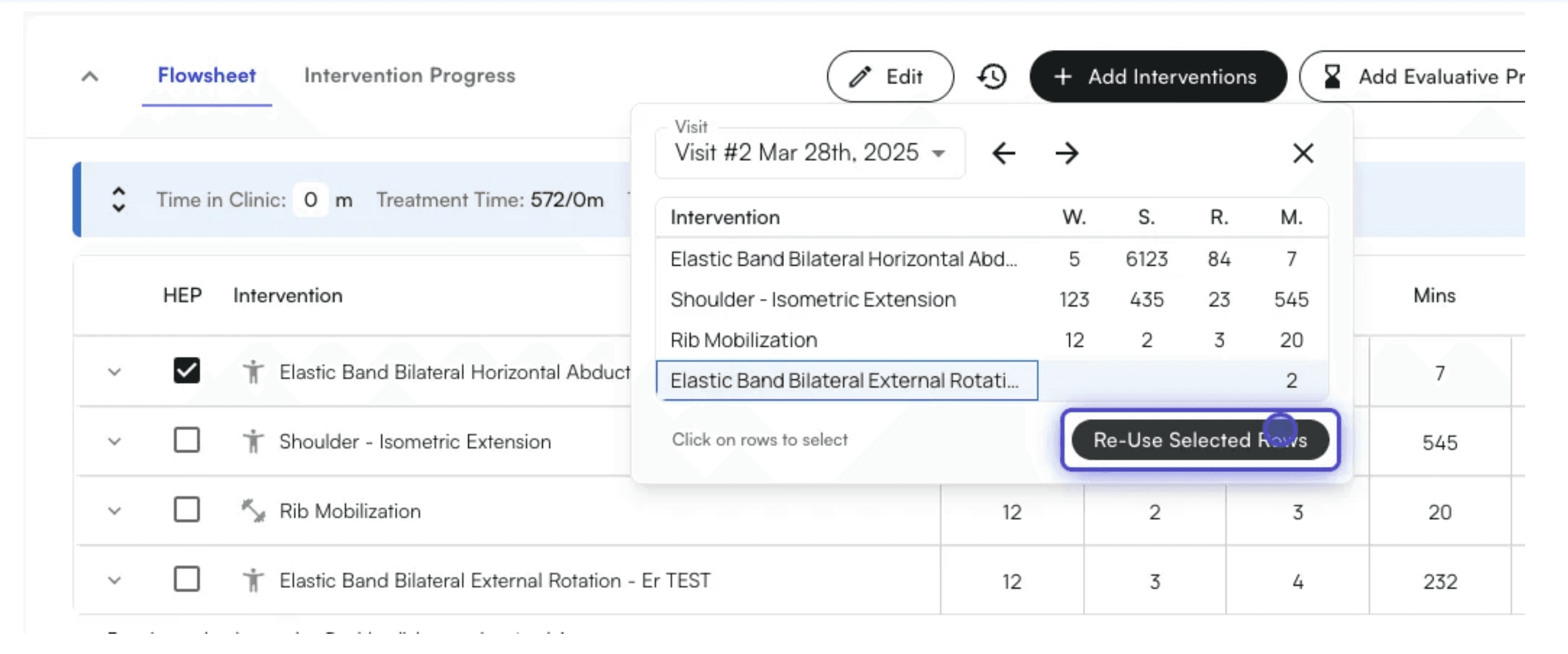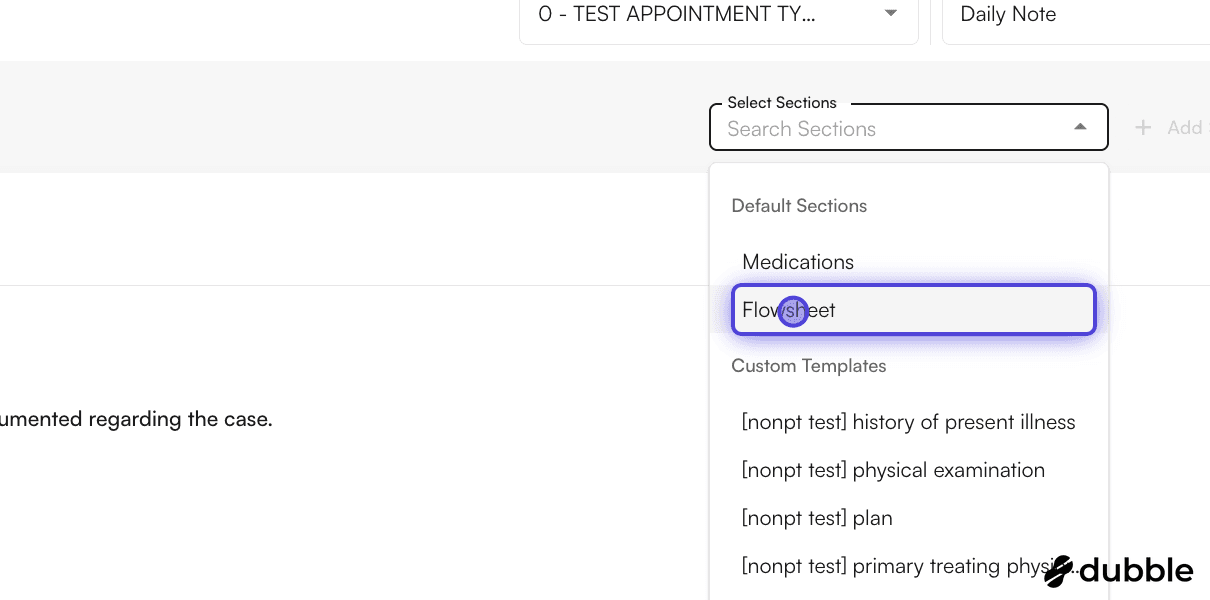
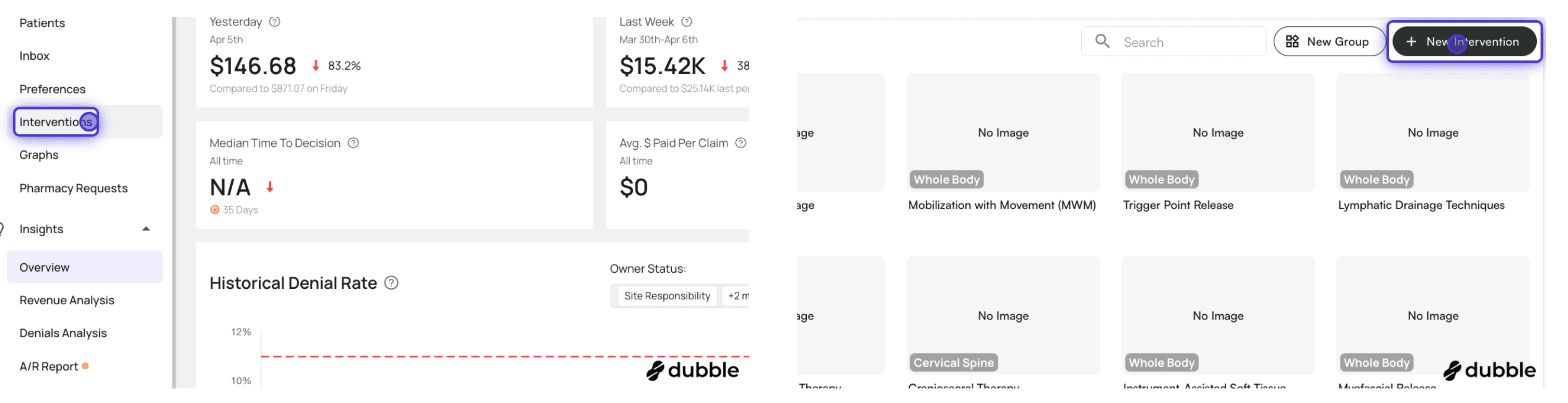
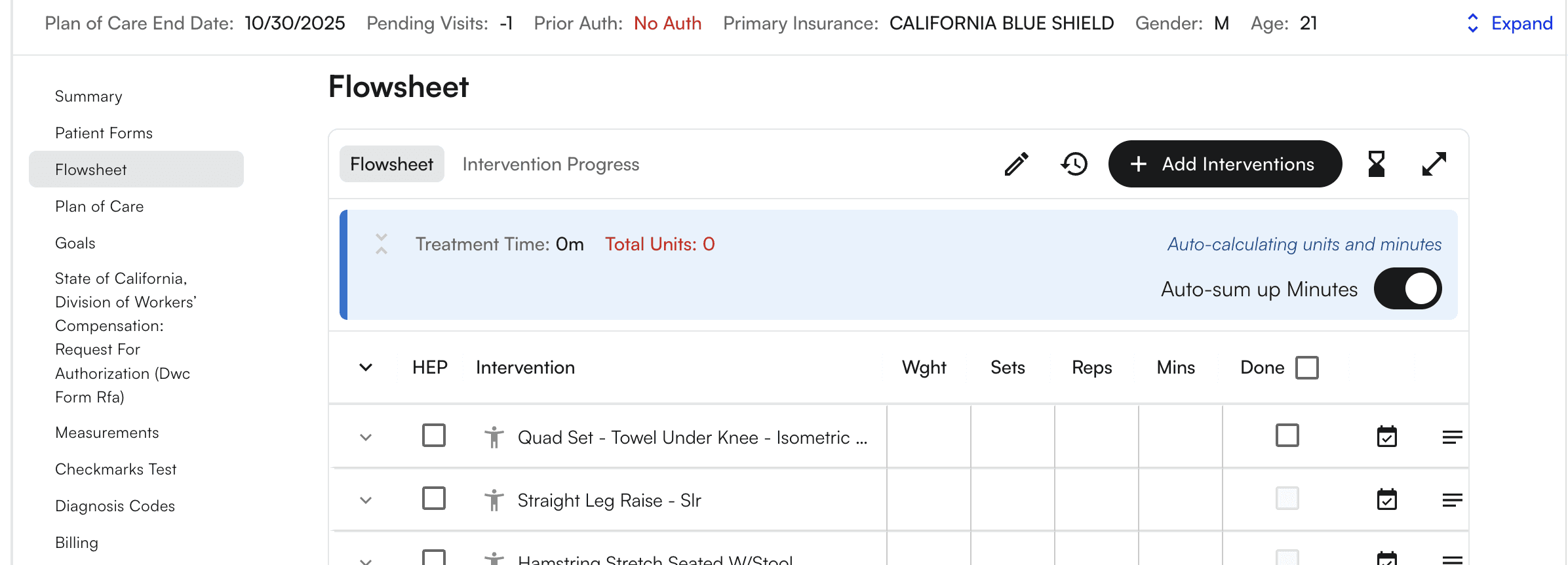
- Add an intervention - “+Add Interventions” through the Intervention manager in the nav bar, or within the chart note itself
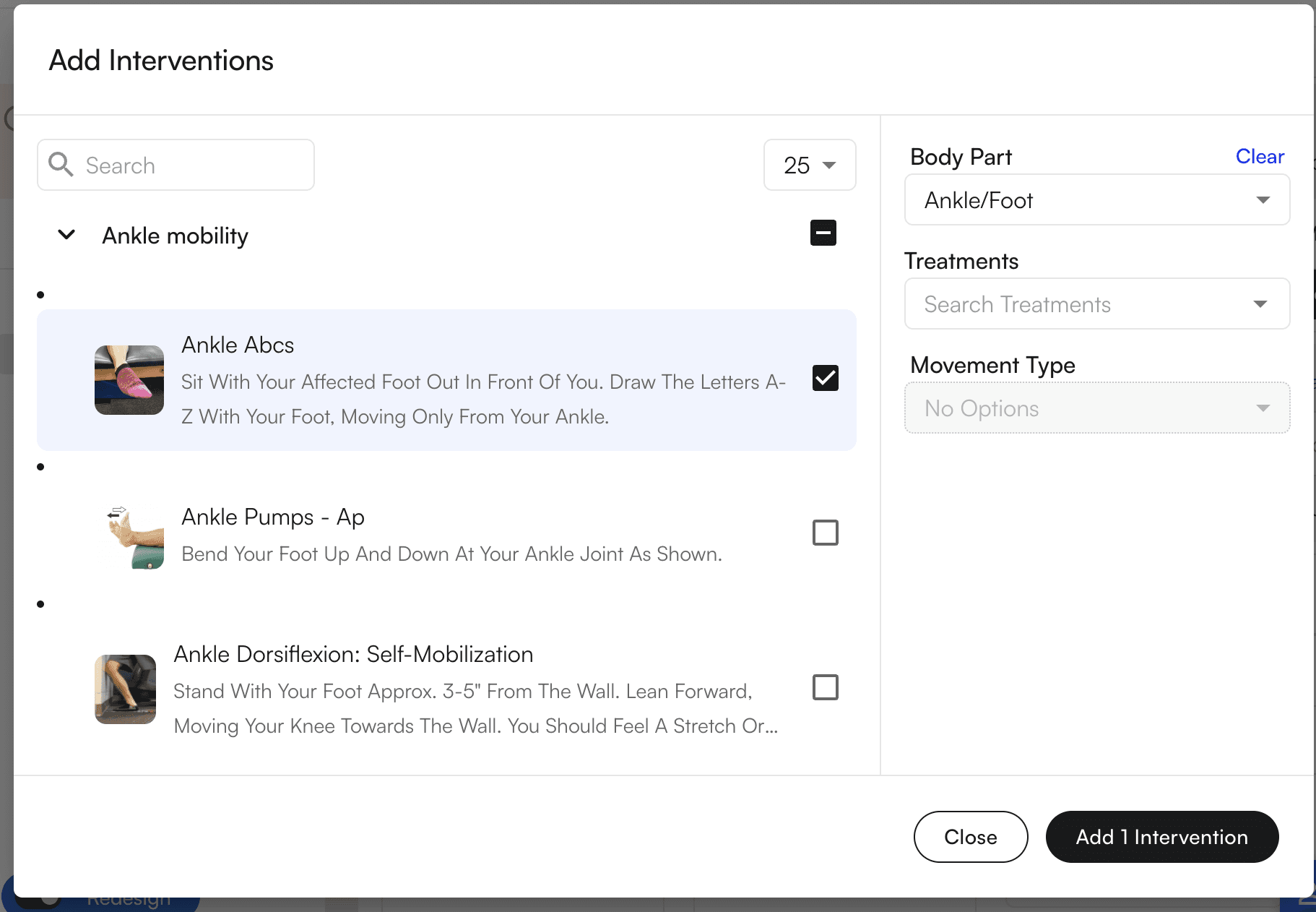
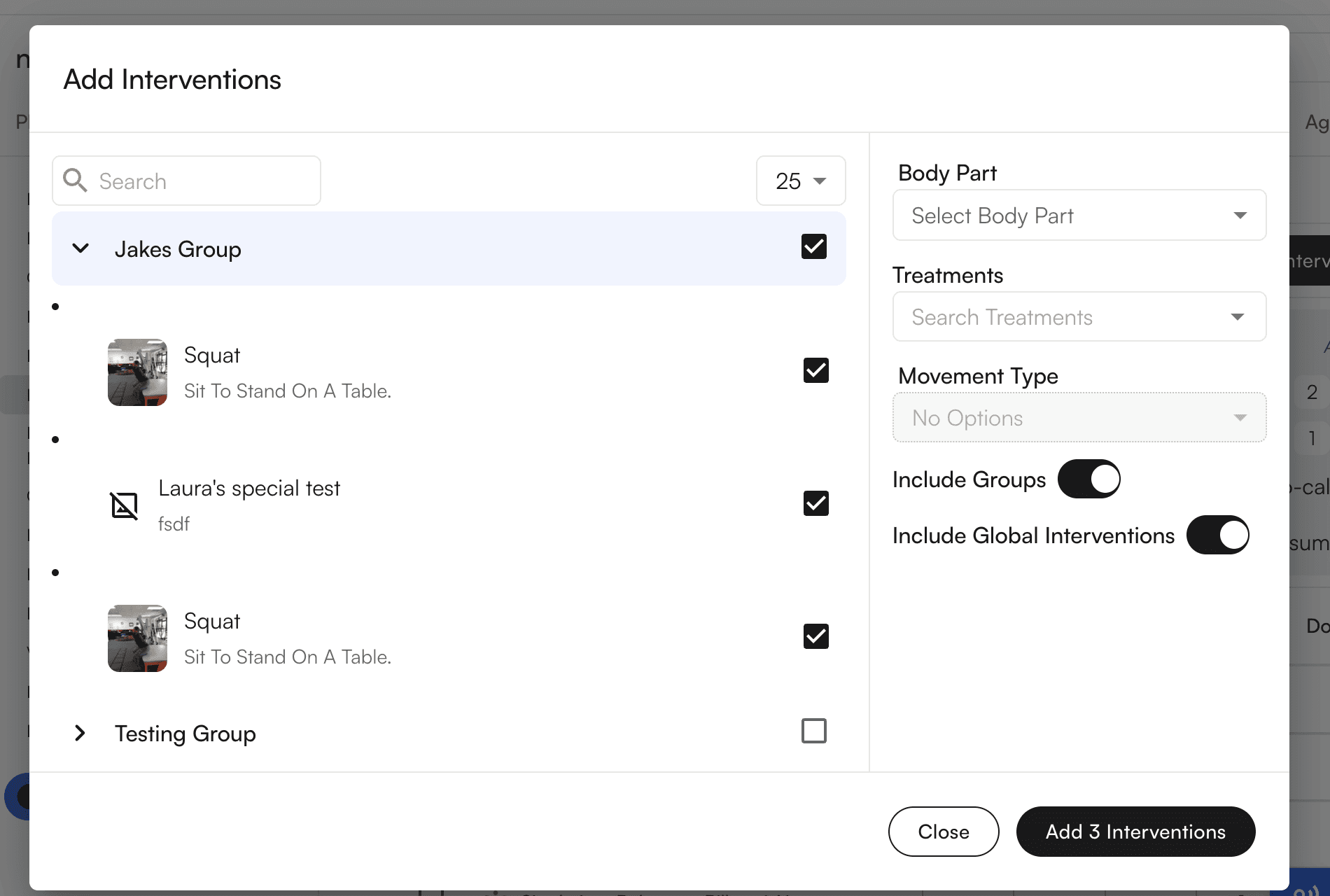
- You can now select groups of interventions, reducing repetitive data entry
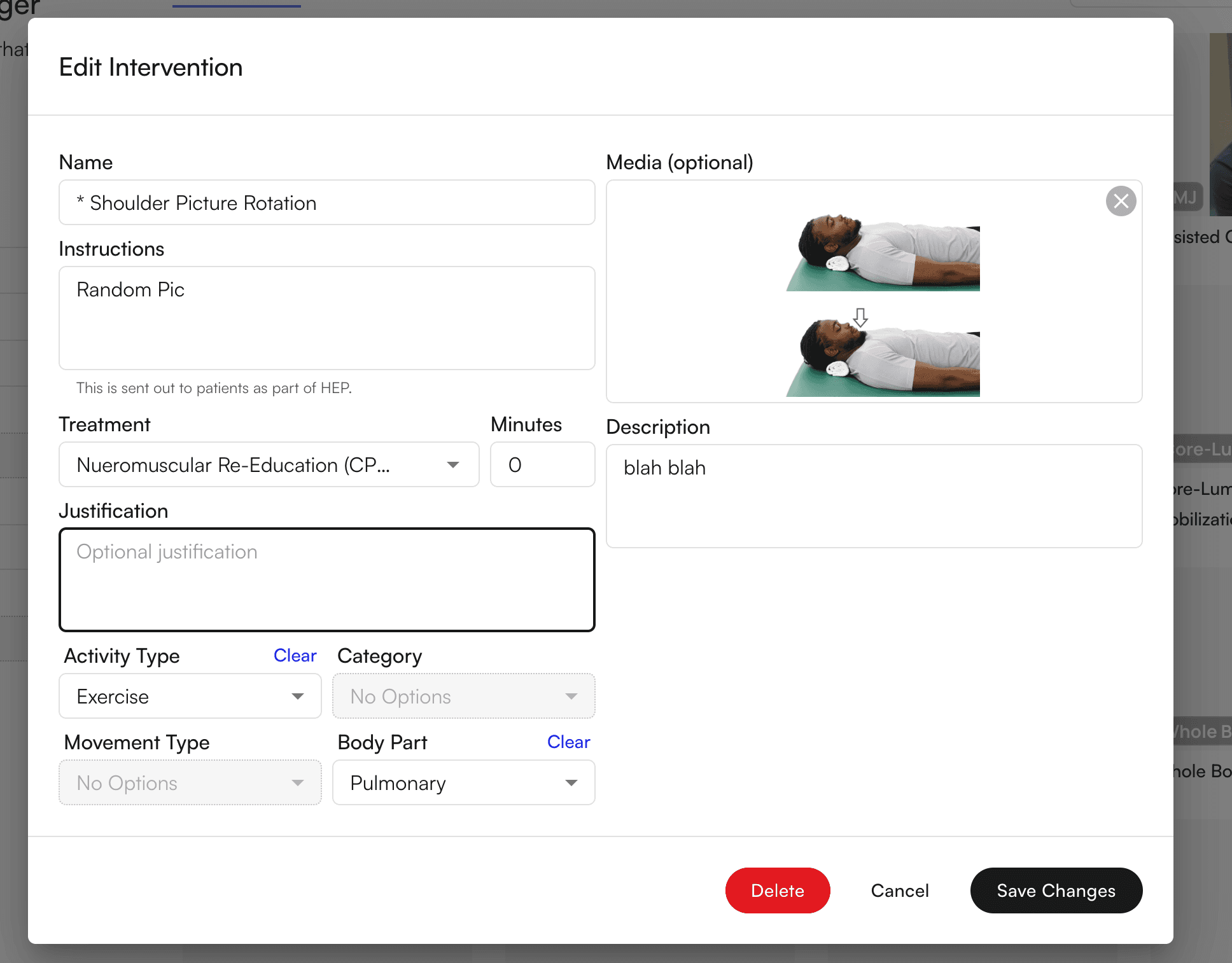
- When editing an Intervention, you can also auto-populate flowsheets with intervention details and exercise parameters
- Configure tying interventions to treatments, which means when interventions are added to the flowsheet, the configured treatment/CPT code will auto-populate as well
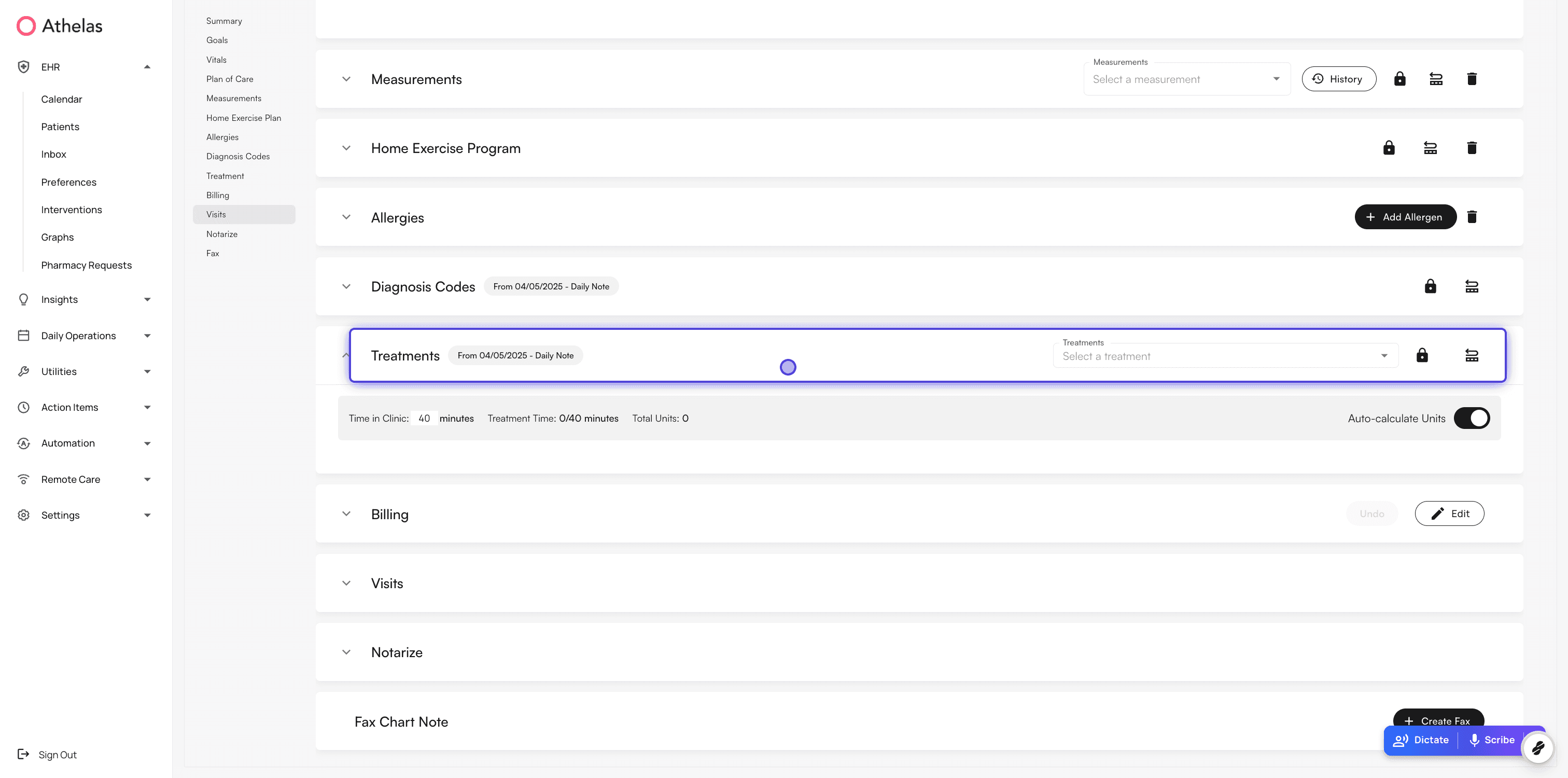
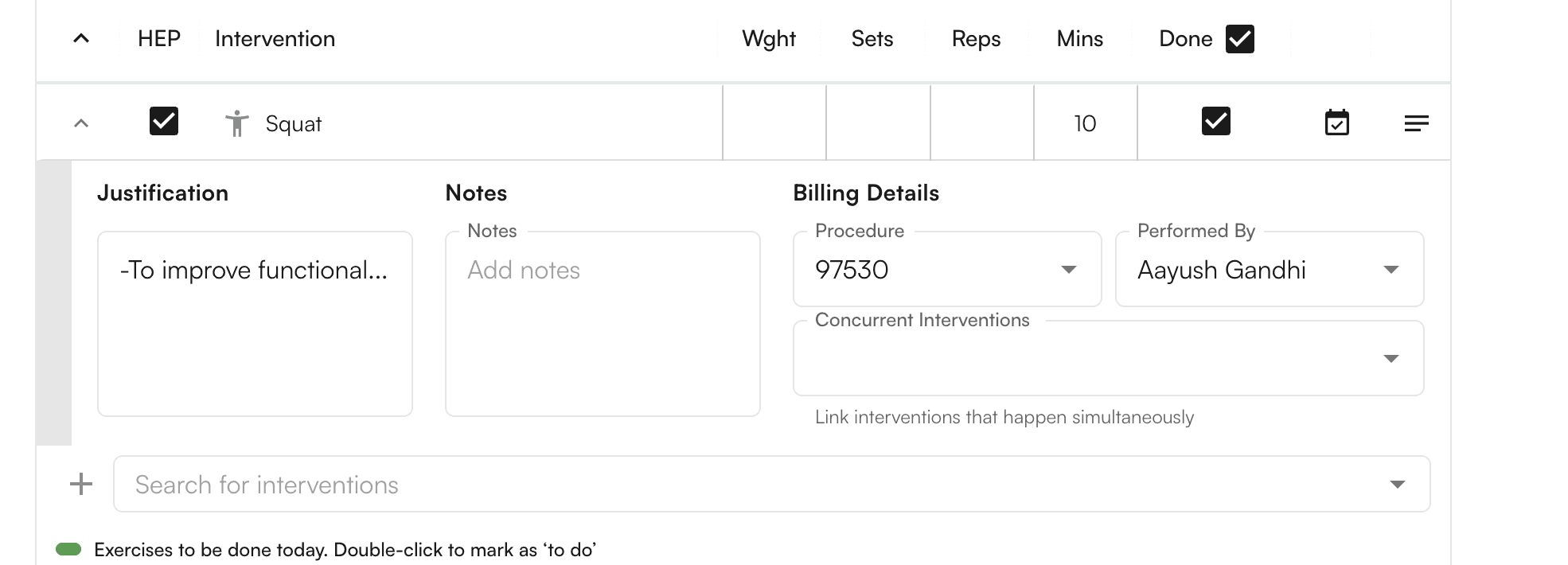
- Select a Procedure code in the Intervention drop down, and mark each intervention as done
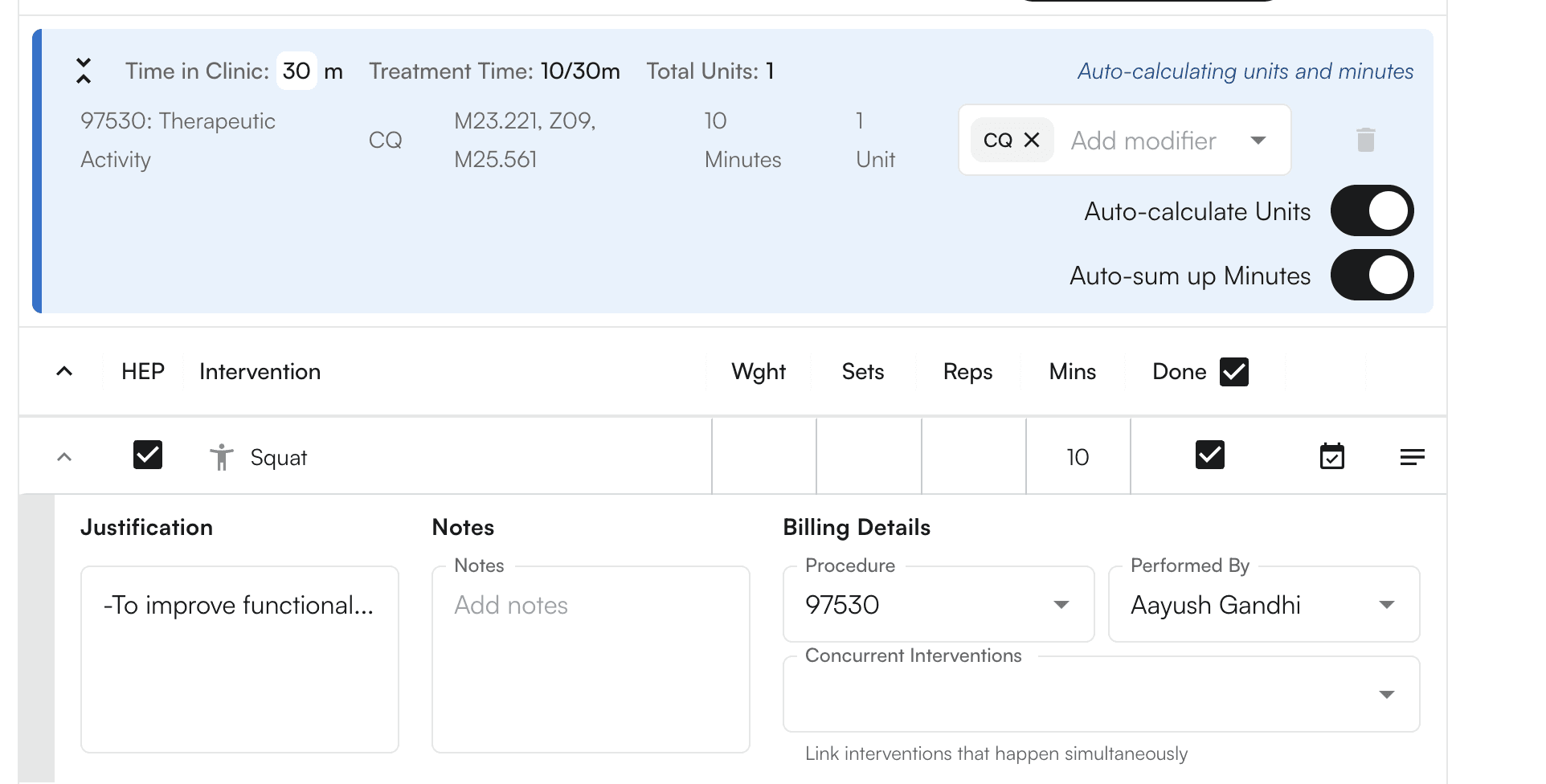
- You must select a procedure code in order to mark an intervention as done, and the treatment time and units will auto populate
- You can configure your flowsheets by de-selecting “Auto-calculate Units” and/or “Auto-sum up Minutes” toggles to allow manual calculations- These toggles are default turned on
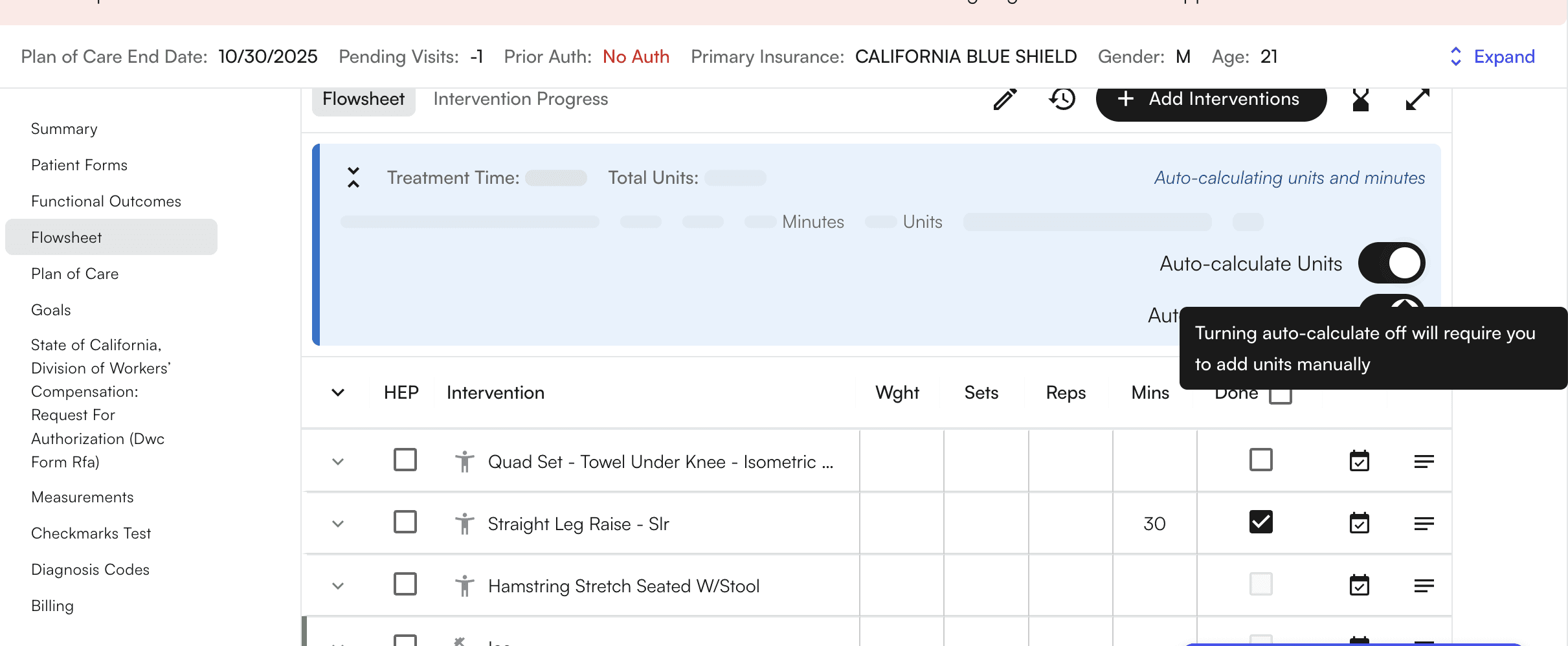
- You can also double click on an intervention in order to mark as “TO-DO”, and a green highlight will emerge
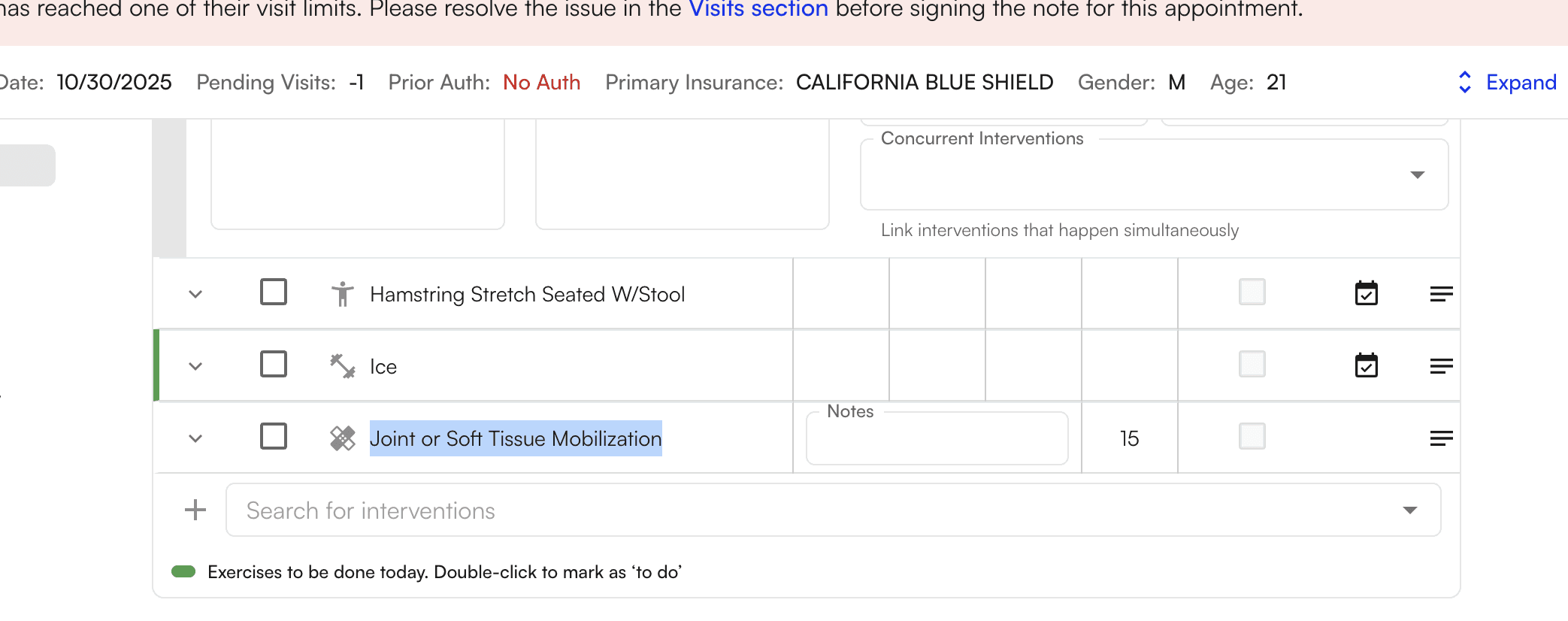
Adding Home Exercise Programs
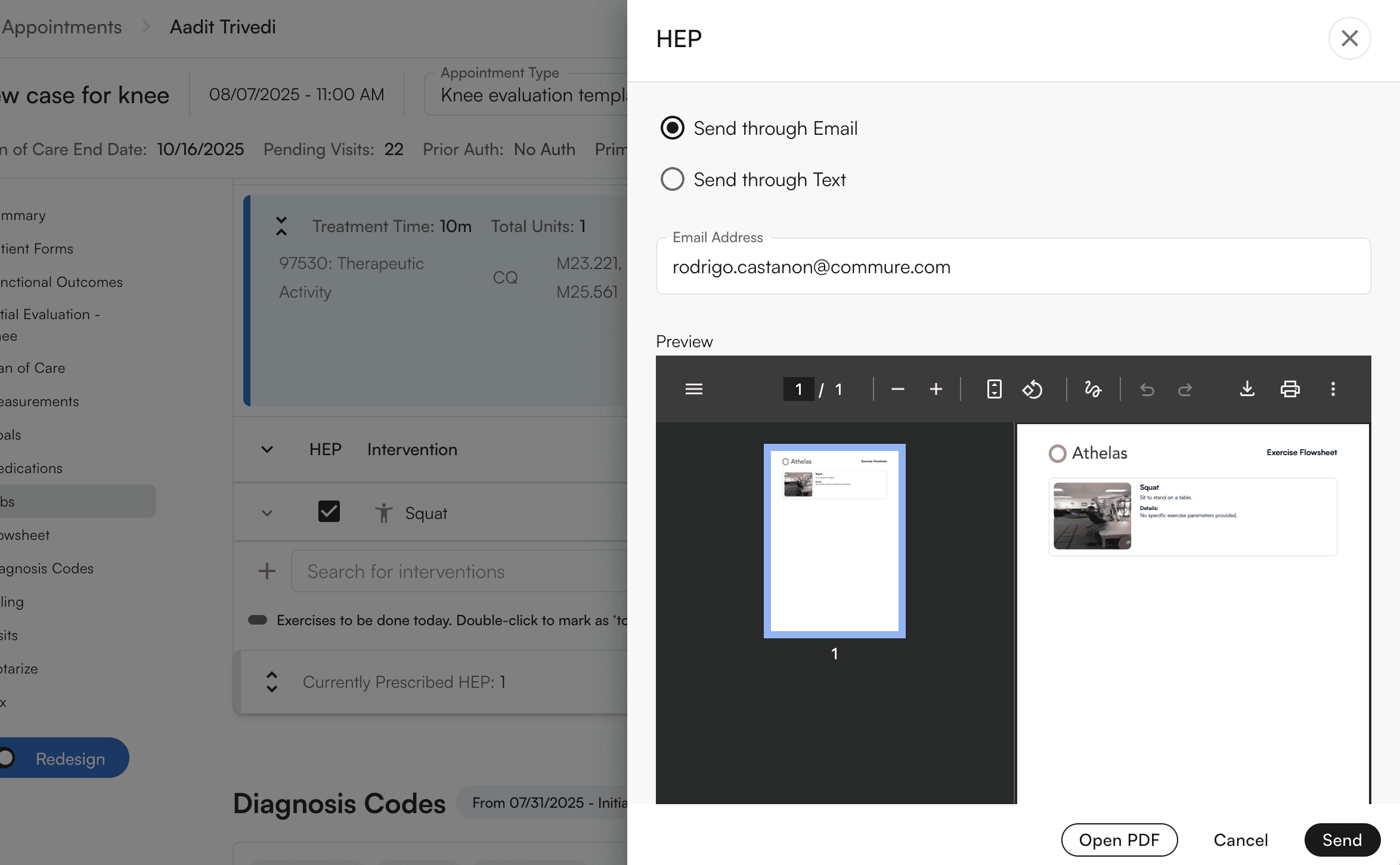
By clicking the checkbox for an intervention marked asHEP, this will add this to a staging area where a Home Exercise Program can be prepared.
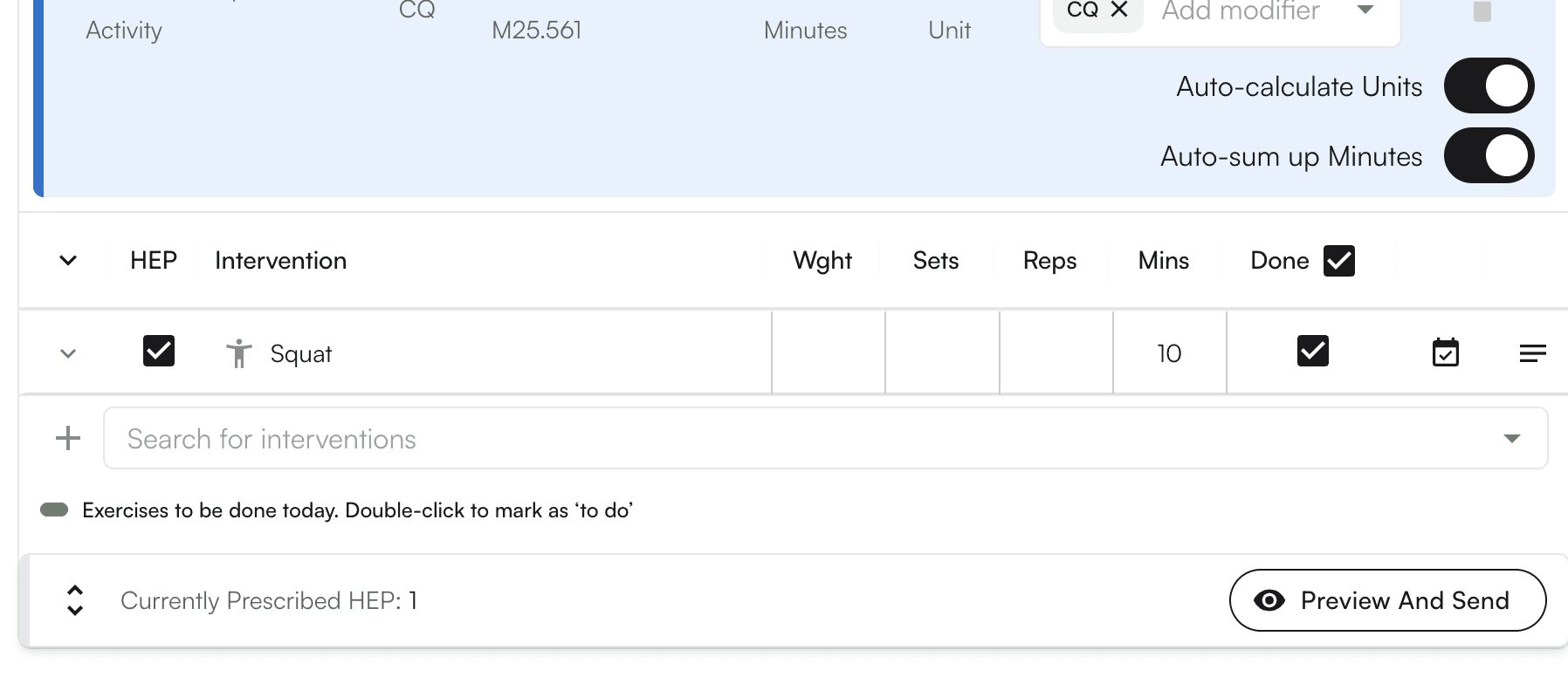
Adding Evaluative Procedure
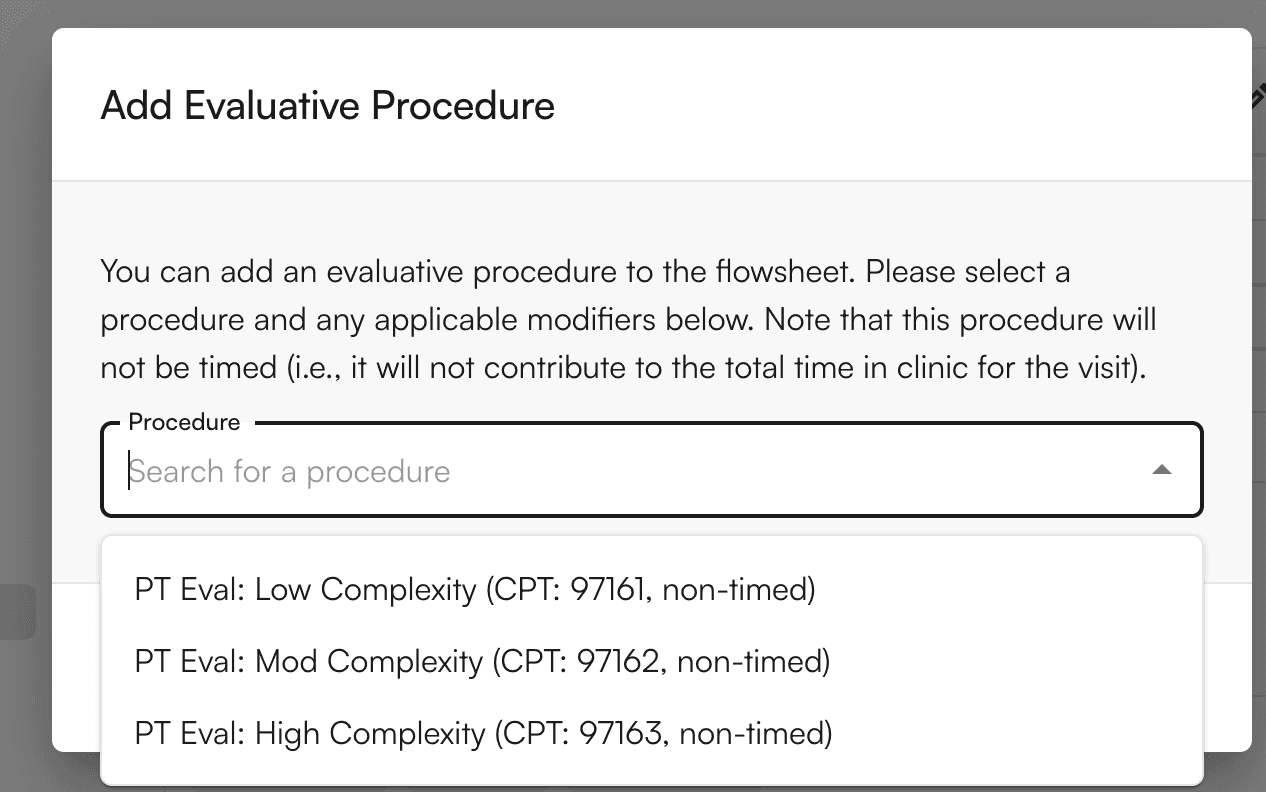
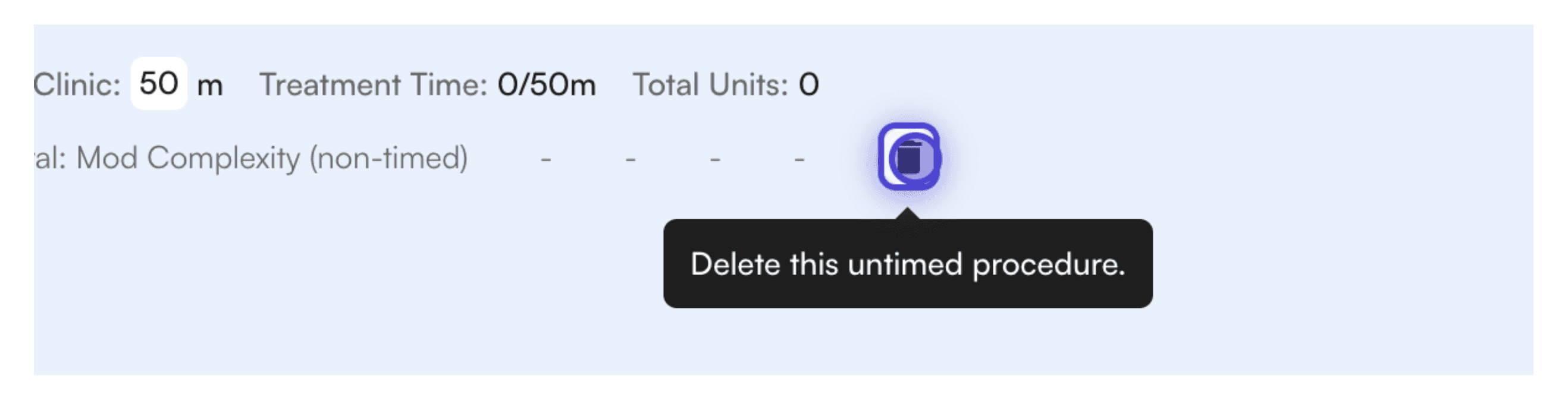
Often times, evaluative procedures may exist outside of being specified to a particular intervention. As such, we allow you to specify this from within the flowsheets feature and manage them independently. Clicking Add Evaluative Procedure will bring up a modal where these CPT codes can be selected.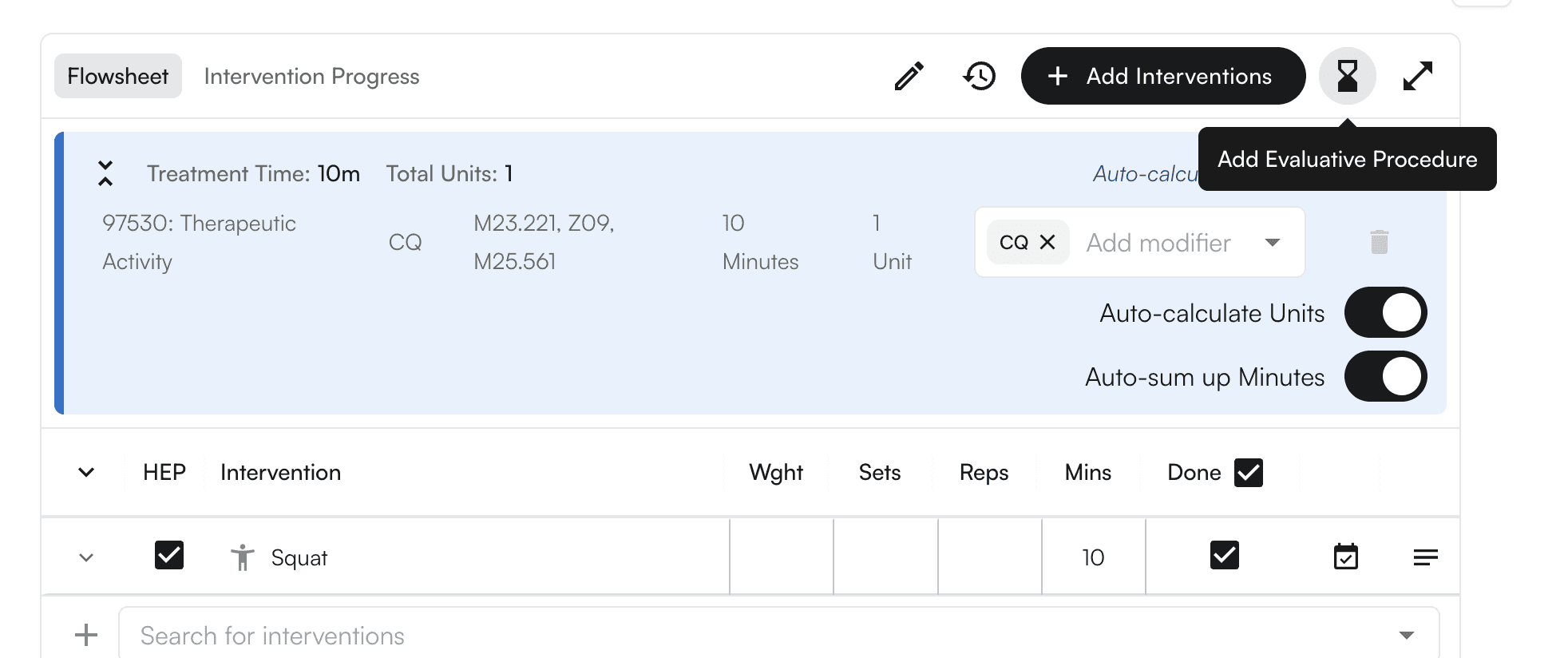
Viewing Intervention Progress
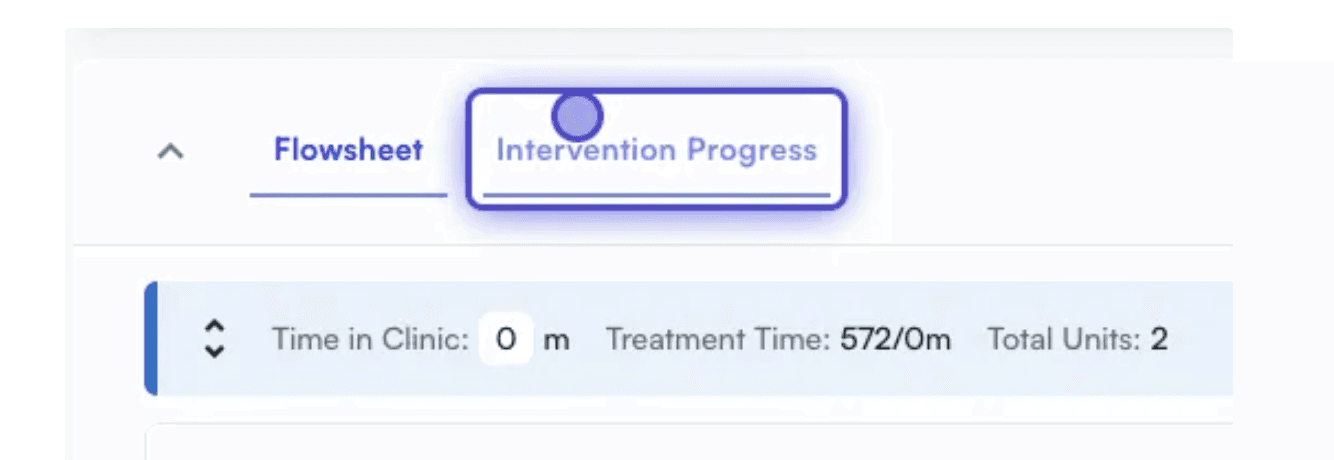
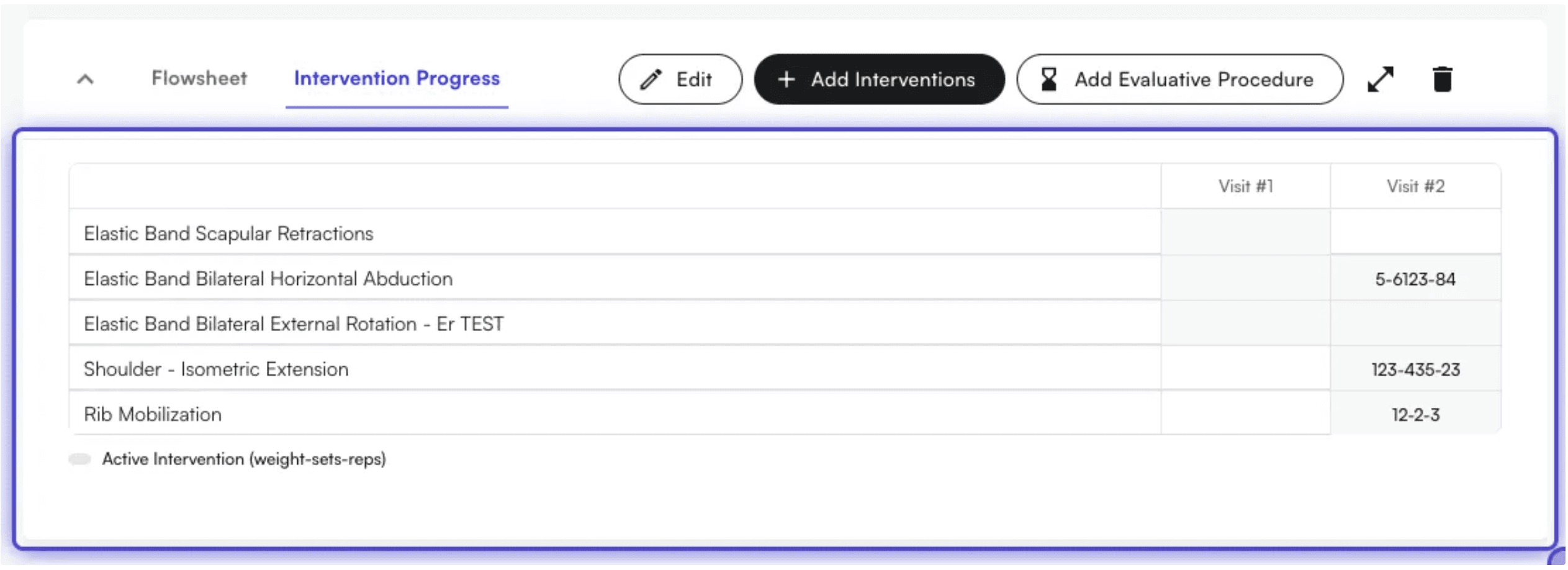
Click onIntervention Progressin the Flowsheet section to view the stats from all previous interventions
Viewing Intervention History
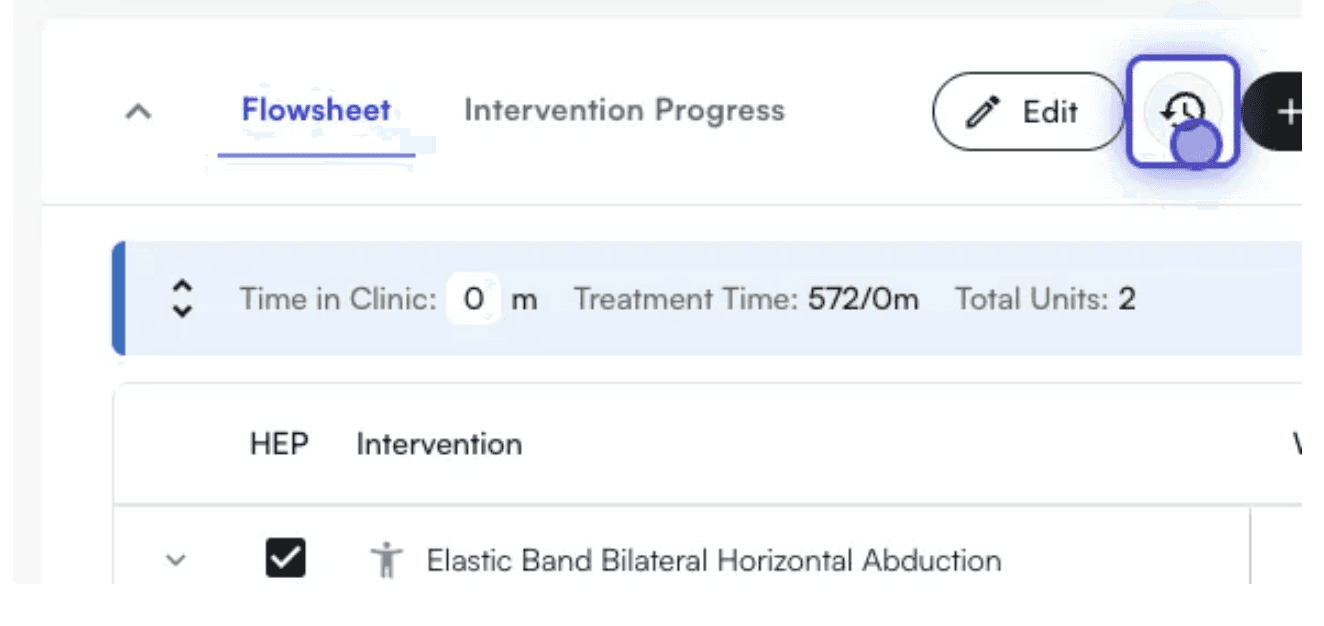
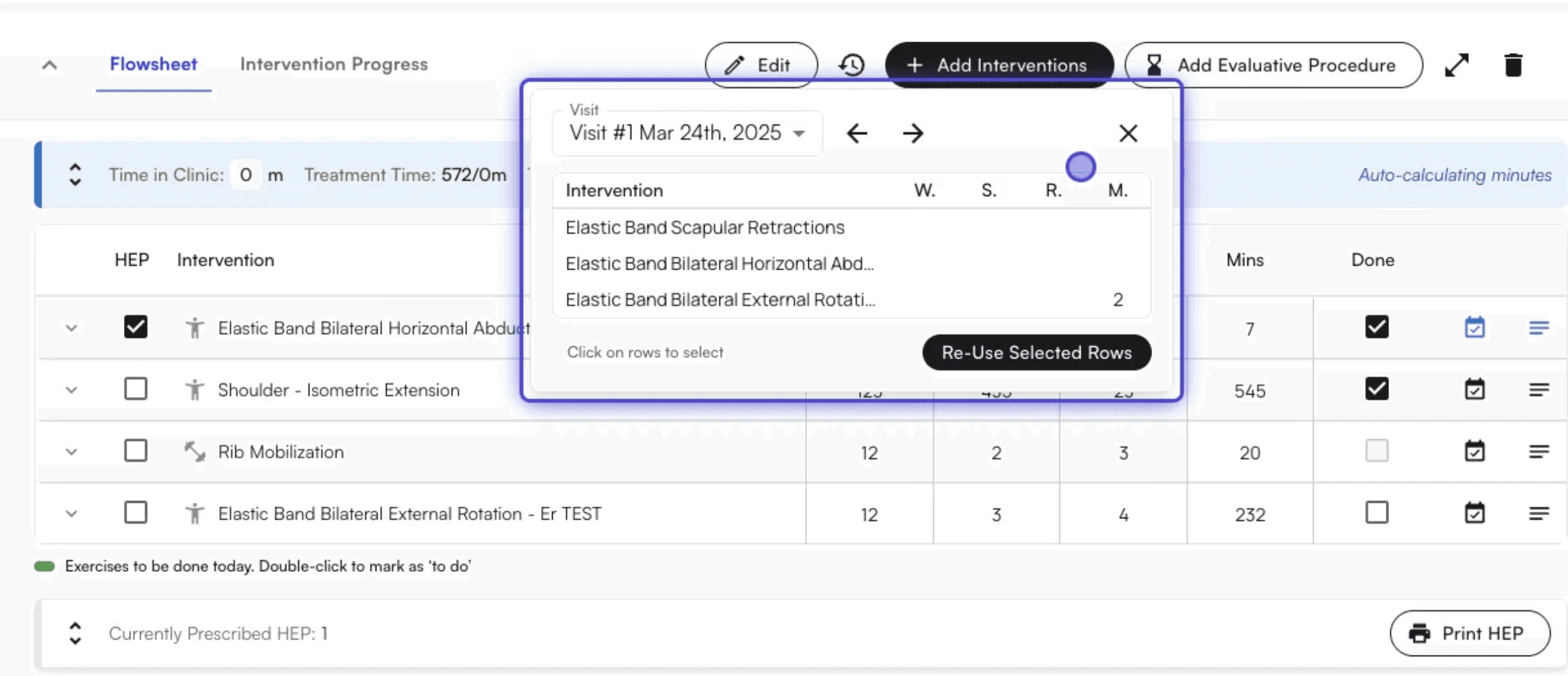
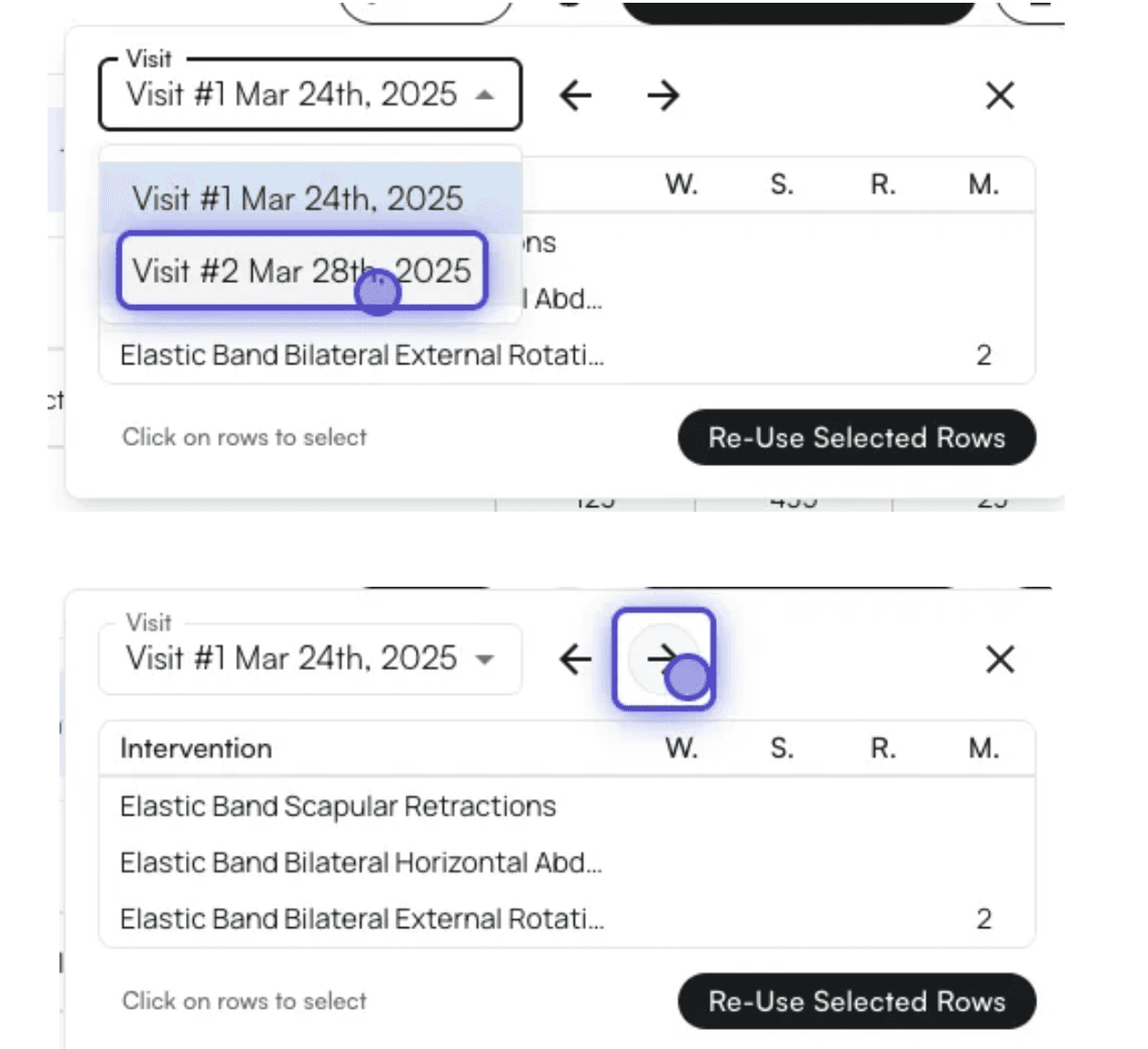
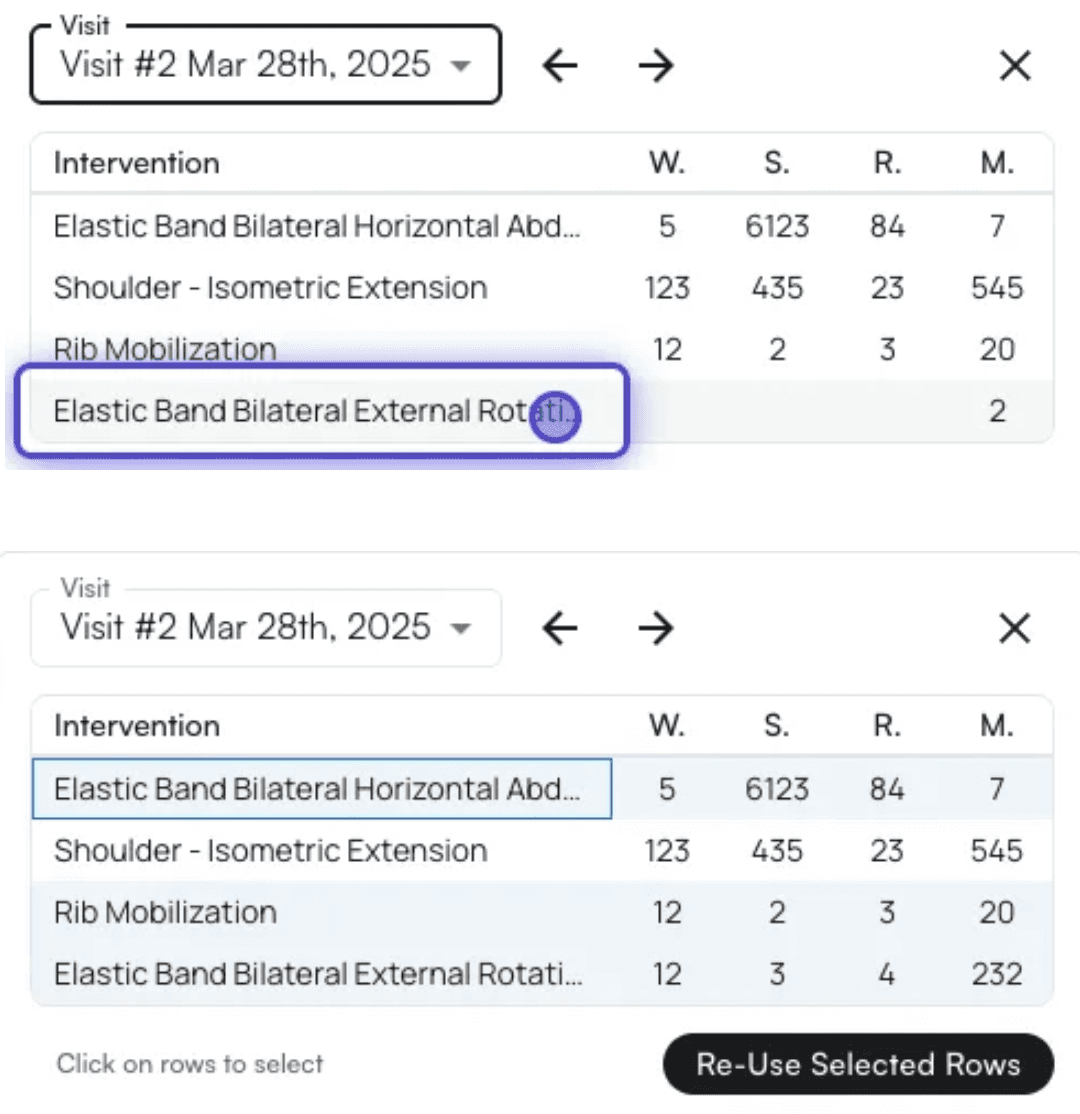
To view intervention history, click on the History icon on the Flowsheet section in the chart note